If you have submitted a Termination request or a Plan Change request (for a Voice SIM / eSIM or a WiFi Device) but you would like to cancel your pending request, please login to your Mobal online account: www.mobal.com/myaccount
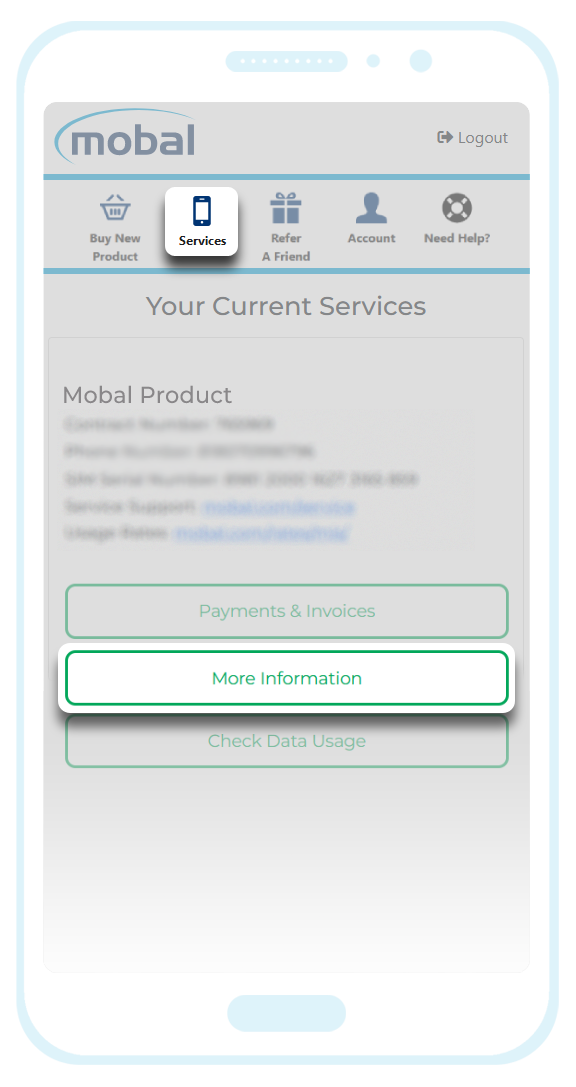
Once you have logged in to your account, visit the "Services" section and then click on the "More Information" button found next to the relevant SIM / eSIM / WiFi Device -
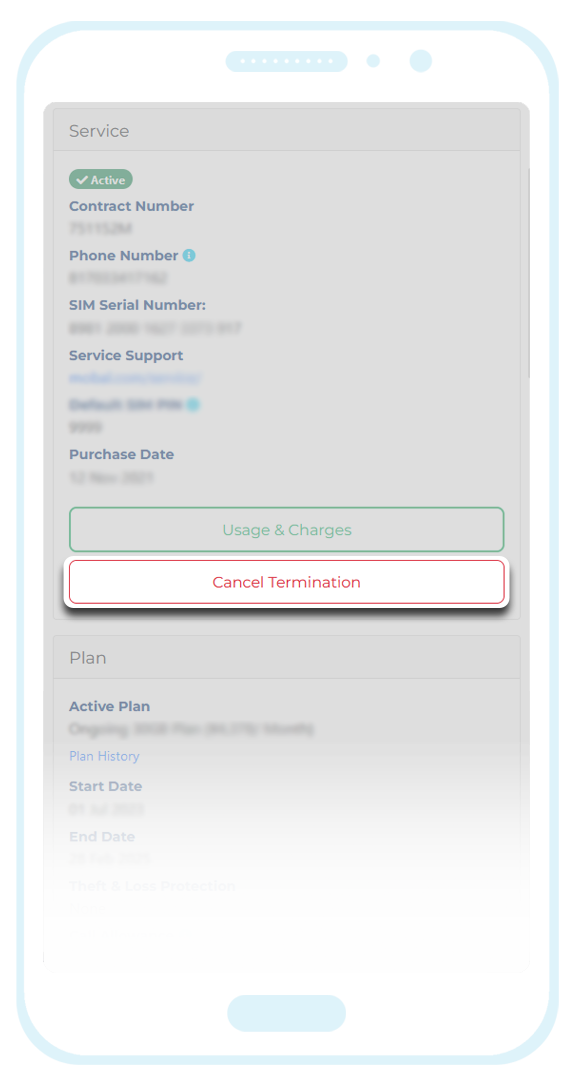
Or you can scroll down to the "Plan" section and click on the "Cancel Scheduled Plan Change" button to cancel a pending plan change request -
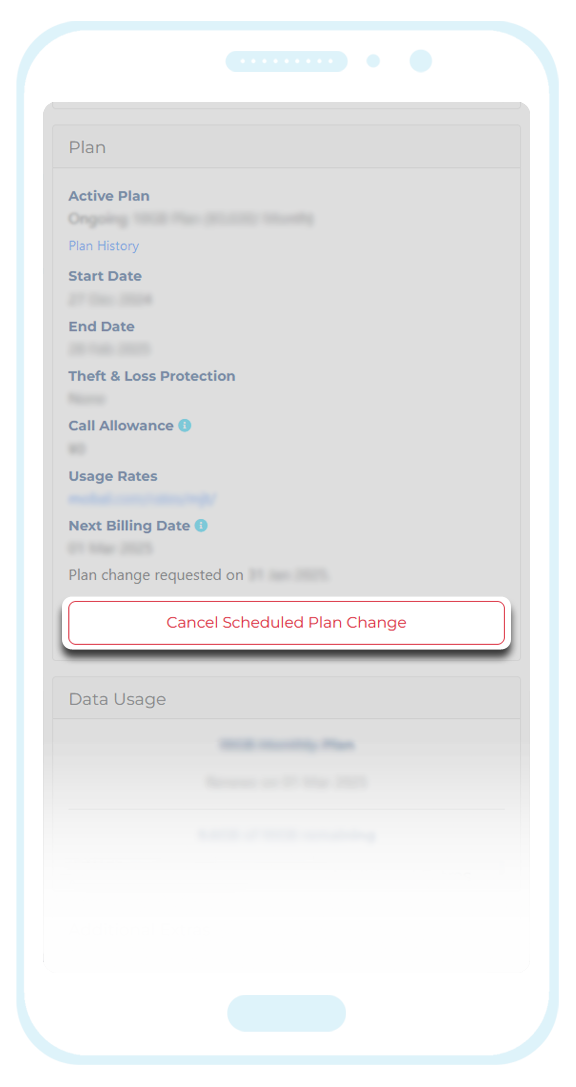
If you only recently submitted the Termination Request / Plan Change Request (that you now wish to cancel), there may be a short delay (of approximately 15 minutes) before the "Cancel Termination" button or the "Cancel Scheduled Plan Change" button becomes visible.
Please also note that if you had originally asked for the Termination Request / Plan Change Request to be processed immediately (instead of selecting a future date) or if you left it too late, the option to cancel the request will not be available.
Once you have cancelled a pending request, there may also be another delay (of approximately 24 hours) before your account resets and the standard buttons reappear in your account.
Additional Note (Mobal WiFi Devices):
Pending requests for our WiFi products are sent to the network on the 20th of each month (for processing at the end of the month).
Because of this, pending requests cannot be canceled after the 20th.
What does this mean for you?
Scheduled Plan Changes:
If you have scheduled a plan change request (for the 1st of the upcoming month) and wish to cancel it, you will be required to login to your Mobal account before the 20th.
If you login to your account after the 20th, it will no longer be possible to cancel the pending request. You would instead need to wait for the pending request to complete and once it has, you can then submit a new upgrade / downgrade (by following the instructions found here) for completion the following month.
Scheduled Termination:
If you have asked for you plan to be terminated (at the end of the current month) and wish to cancel your request, you will be required to login to your Mobal account before the 20th.
If you login to your account after the 20th, it will no longer be possible to cancel the pending request. You would instead need to wait for the termination request to complete and once it has, you can then submit a new activation request by following the instructions found here: Reactivate Your Plan
If this article didn’t help, head back to the home page to see other solutions OR submit a support ticket using the button below.